Welcome to Tech Tips from Sonoma Tech Support! I've been helping regular people get the most out of their computers and phones since 2007, and I've picked up a few tricks along the way. These aren't your boring, dry IT manual entries — these are real tips that actually make your day easier. Whether you're on Windows, a Mac, an iPhone, an Android, or just curious about the AI stuff everyone's talking about, there's something here for you.
Restart Fixes More Than You Think
I know, I know — you've heard this one before. But seriously, a full Restart (not just closing the lid) clears out a lot of gremlins. Windows installs updates, flushes memory, and resets background processes. If something's acting weird, restart first and ask questions later. It solves about 40% of the calls I get before I even remote in.
Use Windows + V to Unlock Your Clipboard History
Did you know Windows has a clipboard that remembers the last 25 things you copied? Press Windows key + V and a little panel pops up with everything you've copied recently. It's a game-changer if you're doing repetitive copy-paste tasks. You'll need to turn it on the first time, but after that — pure magic.
Spotlight Search Is Your Best Friend
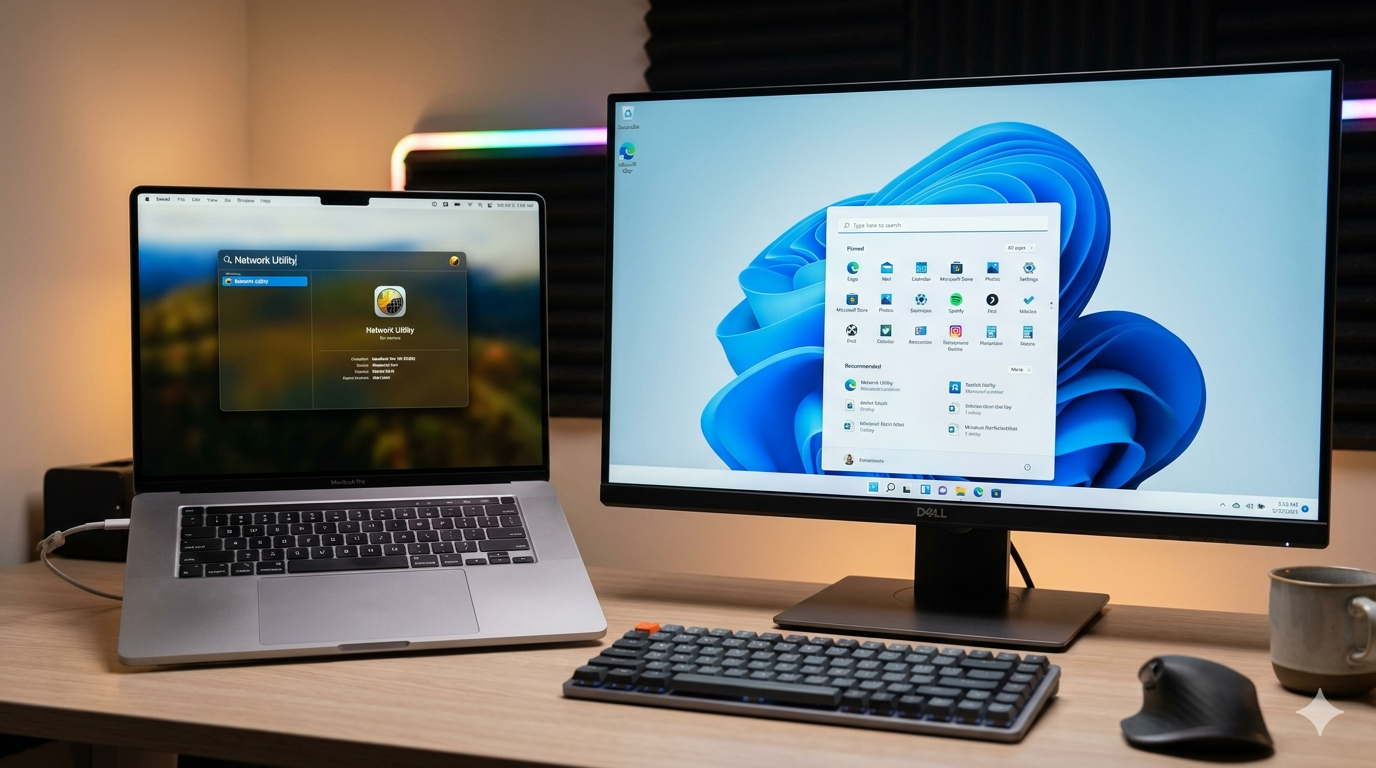
On a Mac, press Command + Spacebar and start typing — anything. Files, apps, emails, calculator math, unit conversions, even weather. Spotlight is basically a superpower that most Mac users ignore. If you're still double-clicking your way through Finder folders to find stuff, stop — you're working too hard.
Stop Ignoring Those Update Notifications
Updates aren't just about new features — most of them are security patches that protect you from hackers and malware. Clicking "Remind Me Later" every single day for six months is how people end up calling me in a panic. Set aside 10 minutes once a week, let the updates install, and restart. Your computer will thank you. So will your bank account.
Task Manager Is Your Computer's Pulse Check
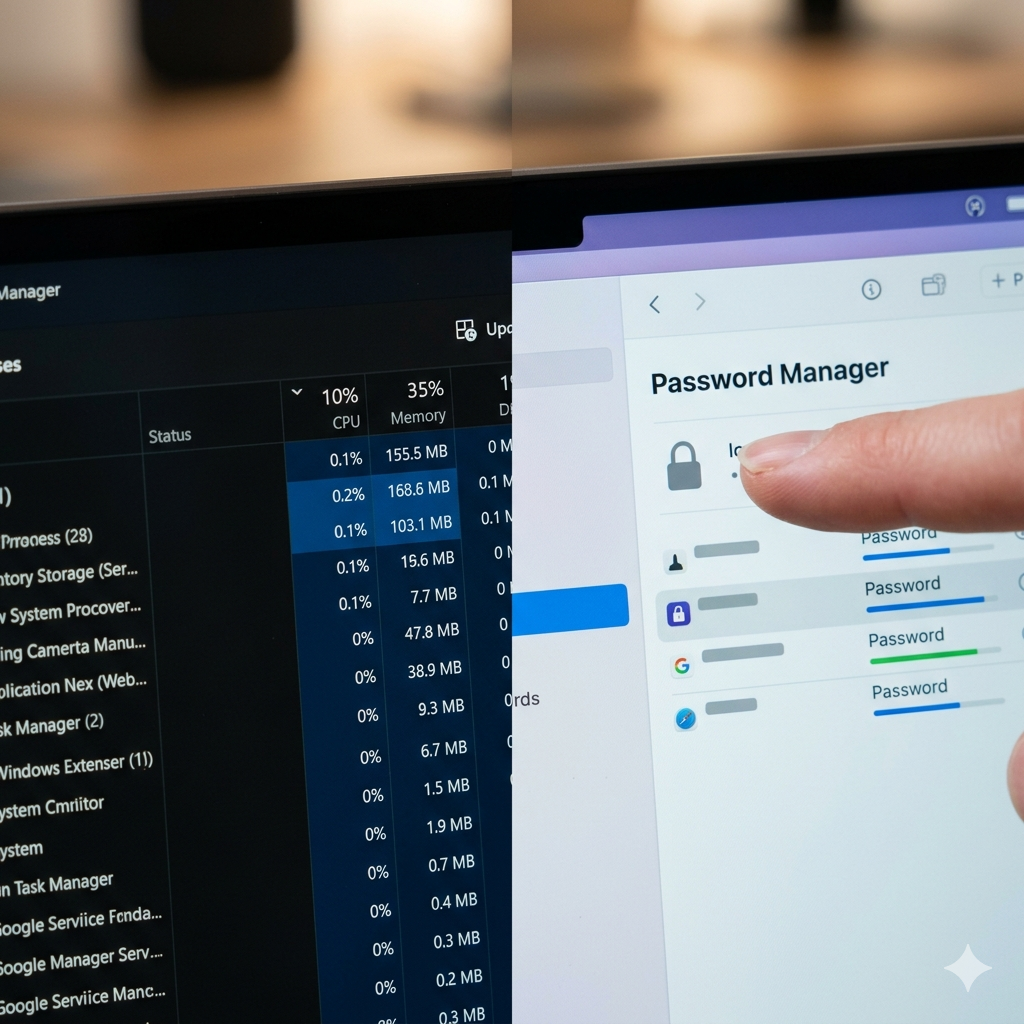
If your PC feels slow and sluggish, press Ctrl + Shift + Esc to open Task Manager and click the "CPU" or "Memory" column to sort by usage. You'll instantly see what's hogging your resources. Sometimes it's a browser with 47 tabs open (you know who you are). Sometimes it's a program you didn't even know was running. Knowledge is power — and speed.
AirDrop Is the Easiest File Transfer You're Not Using
If you have a Mac and an iPhone (or iPad), AirDrop lets you wirelessly beam photos, documents, and files between them instantly — no cables, no email, no cloud required. On your iPhone, tap the Share button on any photo and look for AirDrop. On a Mac, it's in Finder's sidebar. Once you use it, you'll wonder how you survived without it.
A Password Manager Will Change Your Life
Using the same password everywhere is like using one key for your house, car, office, and safe deposit box. When one gets stolen, they all get stolen. A good password manager like Bitwarden (free!) or 1Password generates strong unique passwords and remembers them for you. You only need to remember one master password. It's the single best thing you can do for your online security — and I can help you set it up.
ChatGPT & Claude Aren't Just for Nerds
AI tools like ChatGPT and Claude are genuinely useful for regular people right now. Need to write a professional email but don't know how to start? Ask. Want to understand a confusing bill or contract? Paste it in and ask for a plain-English explanation. Trying to plan a trip? It'll help. Think of it like a really smart assistant who's available 24/7 and never judges your questions. I can even walk you through getting started — it's one of my favorite things to teach.
Your iPhone's Hidden Shortcuts Are a Game-Changer
Most people use about 20% of what their iPhone can do. Here are three quick wins: First, tap the back of your phone twice to trigger an action like a screenshot (Settings > Accessibility > Touch > Back Tap). Second, swipe down on your home screen to get a search bar that finds anything on your phone instantly — just like Spotlight on a Mac. Third, in Messages, press and hold any message bubble to react with an emoji instead of typing a reply. Small things, big difference.
Android Does More Than You Think — Right Out of the Box
Android users, you've got some serious power at your fingertips. Try this: press and hold on any blank spot on your home screen to customize your layout, widgets, and shortcuts. Want to find something fast? Swipe up from the bottom to get to your app drawer, then just start typing — it searches everything. And if you're a Google Photos user, make sure Backup is turned on (open Google Photos > your profile picture > Photos Settings > Backup). Losing your photos because backup was off is a call I get way too often.
Back Up Your Stuff. Seriously. Today.
Hard drives fail. Laptops get dropped, stolen, or caught in coffee-related accidents. If your photos, documents, and files only exist in one place, you're one bad day away from losing them forever. Set up Windows Backup or Time Machine on Mac, or use a cloud service like Backblaze (about $9/month for unlimited backup). A backup you never had to use is the best money you ever spent. A backup you wish you'd had is a much sadder story.
Get Remote Help Now Contact Us
5 Signs Your Windows 10 PC Needs to Be Replaced
If you're still running Windows 10, here's something you need to know: Microsoft officially ended support on October 14, 2025. That means no more security patches, no more bug fixes, and no more protection against the hackers who are already writing software to exploit those gaps.
But here's the thing — not everyone needs a new computer just because Windows 10 is done. Some machines can be upgraded to Windows 11 for free. Others can't. And some computers are just plain tired and ready to retire, regardless of the operating system.
Here are five signs your PC is telling you it's time for a replacement:
If you're walking away to make coffee while your computer boots, that's not normal anymore. A healthy modern PC should be up and ready in under 30 seconds. Constant slowness usually means aging hardware — a slow hard drive, not enough RAM, or a processor that's just worn out.
Windows 11 requires specific hardware — most importantly, a TPM 2.0 chip and a compatible processor. Many PCs made before 2018 don't qualify. If your machine fails the Windows 11 compatibility check, Microsoft has essentially told you: this PC is at the end of its road.
A PC from 2017 or 2018 was built for a completely different era of software. Today's apps, browsers, and video calls put way more demand on your hardware. If your machine is pushing 6+ years old, it's not just slow — it's becoming a liability for your business.
One repair is normal. Two or three in the same year? That's your computer waving a white flag. When you're spending money fixing the same machine over and over, you're throwing good money after bad. At some point a new PC is simply the smarter investment.
Grinding, clicking, or constant fan noise are physical warning signs. Hard drives fail. Fans wear out. Thermal paste dries up. These aren't software problems — they're mechanical ones. If your PC sounds like it's working harder than it should just to run a browser, the end may be closer than you think.
📞 (707) 703-2711 | 💬 Text Us | Contact Us Online